Midea PortaSplit in Home Assistant: Setup and Dashboard
Step by step, from pairing with MSmartHome and integrating Midea AC LAN to a finished dashboard with metrics, controls, and history charts.
The Midea PortaSplit can be controlled directly on the local network through Home Assistant using a community integration. In seven steps, you can create local control with metrics and history charts, from app pairing to the dashboard. The dashboard, helper sensors, and theme are available in the GitHubpfstr/ha-portasplit-dashboard repository.
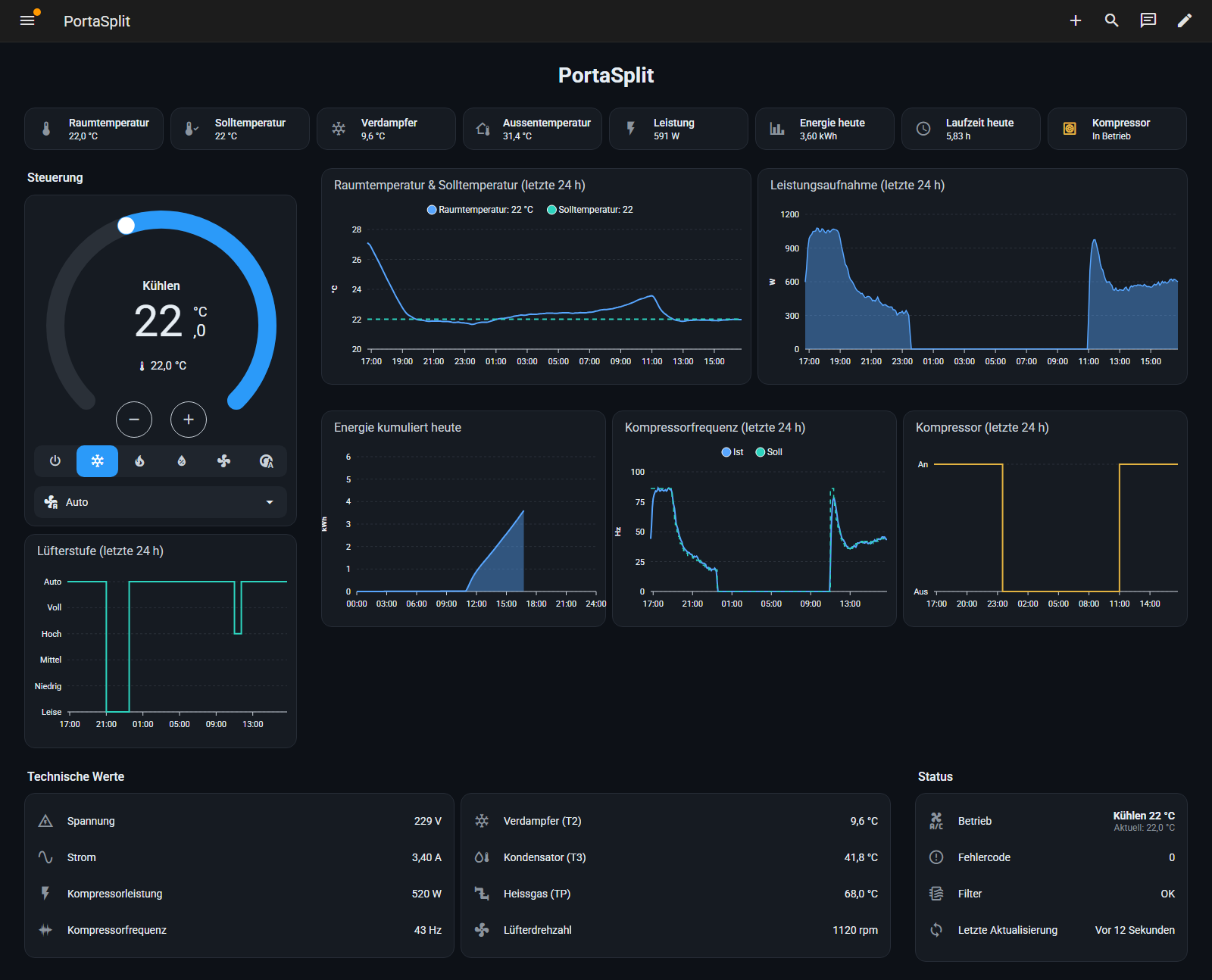
The image shows the finished dashboard in cooling mode with metrics, controls, and histories for the past 24 hours.
The series has three parts: Part 1 describes the setup, Part 2 covers securing the token, key, and home network, and Part 3 puts the warnings about the Midea Cloud API into context.
How local control works
After setup, control commands go directly from Home Assistant to the PortaSplit, without routing through a Midea server. On devices using the V3 protocol, however, the PortaSplit accepts local commands only with two device-specific values: token and key. The integration retrieves both once during setup from the Midea Cloud and stores them locally:
Einrichtung:   Home Assistant → Midea-Cloud → Token und Key
Betrieb:       Home Assistant → lokales Netz (6444/TCP) → PortaSplit
The integrations described are community projects and are not officially supported by either Midea or Home Assistant. Firmware or cloud changes may affect their behavior.
Which integration is right for you
Two community integrations support the PortaSplit:
| Integration | Focus |
|---|---|
GitHubwuwentao/midea_ac_lan (Midea AC LAN) | many Midea device classes; provides 21 sensors for the PortaSplit, including compressor frequency, current, and voltage as well as evaporator, condenser, and discharge gas temperatures |
GitHubmill1000/midea-ac-py (Midea Smart AC) | tailored to air conditioners (0xAC, 0xCC), queries device capabilities, and supports the outdoor unit’s quiet mode |
For my PortaSplit, I use Midea AC LAN; the guide and dashboard are based on its entities. With Midea Smart AC, the entities have different names, so the dashboard can only be used after adjustment. Running both integrations with the same device at the same time causes status issues and is not advisable.
Requirements
- Midea PortaSplit with Wi-Fi functionality and a 2.4 GHz Wi-Fi network
- MSmartHome app with a Midea account
- Home Assistant version 2024.10 or later (tested with 2026.7), with access to the configuration directory
/config, for example via the File editor add-on, Samba, or SSH - HACS for the chart card
apexcharts-card - Network access from Home Assistant to the PortaSplit on port 6444/TCP
Step 1: Connect PortaSplit to MSmartHome
- Install the MSmartHome app and sign in with your Midea account.
- Put the PortaSplit into Wi-Fi pairing mode and connect it to the 2.4 GHz Wi-Fi network.
- Check that the PortaSplit can be controlled through the app.
- Create a DHCP reservation for the PortaSplit in your router so it permanently receives the same IP address.
If the router uses the same SSID for 2.4 and 5 GHz, pairing usually still works. If there are problems, a separate 2.4 GHz Wi-Fi network may help temporarily.
Step 2: Install Midea AC LAN
Via HACS: Open HACS, search for Midea AC LAN, download the integration, and restart Home Assistant.
Without HACS: Download the release archive directly into the custom_components directory. In a Docker installation, this can be done with docker exec -it homeassistant bash in the container; with Home Assistant OS, use the Terminal add-on:
mkdir -p /config/custom_components
cd /config/custom_components
wget https://github.com/wuwentao/midea_ac_lan/releases/download/v2026.9.2/midea_ac_lan.zip
unzip midea_ac_lan.zip -d midea_ac_lan
rm midea_ac_lan.zipThe current version number is listed on the project’s release page. Then restart Home Assistant through Settings, System, and Restart. The We found a custom integration midea_ac_lan which has not been tested by Home Assistant warning in the log is normal for every custom integration.
Step 3: Add PortaSplit
Go to Settings, Devices & services, Add integration, and search for Midea AC LAN. The setup dialog asks for the following in sequence:
- Action:
Discover automatically. - IP address:
autosearches the local network. If the PortaSplit is in another VLAN, enter its IP address because broadcast discovery does not cross VLAN boundaries. - Device: The PortaSplit appears as
<Geräte-ID> (Air Conditioner). - Login: Account, password, and server. For an MSmartHome app account, select
SmartHome; if login fails, useNetHome Pluswith the same credentials. The integration uses this to retrieve the token and key once.
The device then appears with a single entity, climate.<geräte-id>_climate. The device ID is a 15-digit number and is referred to below as DEVICE_ID.
Step 4: Enable sensors
Midea AC LAN creates only the climate entity by default. Go to Settings, Devices & services, Midea AC LAN, Configure to open the options dialog:
| Field | Setting |
|---|---|
| IP address | leave unchanged |
| Refresh interval | 30 seconds (default) |
| Sensors | select all available sensors |
| Switches | at least Power, ECO Mode, Sleep Mode, Swing Vertical, Swing Horizontal, Screen Display, Prompt Tone, and Fan Speed Percent |
| Customize | leave blank |
After saving, the integration creates the entities without a restart, following the pattern sensor.DEVICE_ID_indoor_temperature. A PortaSplit (device type 0xAC, V3 protocol) with Midea AC LAN v2026.9.2 reported these values in standby:
| Entity | Meaning | Value in standby |
|---|---|---|
indoor_temperature | room temperature | 23.0 °C |
outdoor_temperature | outdoor temperature at the outdoor unit | 23.5 °C |
realtime_power | current power consumption | 1.5 W |
total_energy_consumption | energy meter since commissioning | 90.54 kWh |
compressor_frequency, target_compressor_frequency | actual and target compressor frequency | 0 Hz |
compressor_voltage, compressor_current, compressor_power | compressor voltage, current, and power | 230 V, 1 A, 4 W |
indoor_coil_temperature (T2), outdoor_coil_temperature (T3) | evaporator, condenser | 23.5 °C |
discharge_pipe_temperature (TP) | discharge gas line | 23 °C |
indoor_fan_speed | fan speed | 0 rpm |
error_code, full_dust | error code, dirty filter | 0, on |
indoor_humidity | humidity | unknown |
The PortaSplit has no humidity sensor, so indoor_humidity remains empty. The climate entity supports the modes Off, Auto, Cool, Dry, Heat, and Fan only; target temperatures from 16 to 30 °C in 0.5 °C increments; and the fan speeds Silent, Low, Medium, High, Full, and Auto.
Step 5: Install the chart card
The history charts use apexcharts-card. Search HACS for apexcharts-card and download it. HACS registers the card as a dashboard resource; then reload the browser once.
Step 6: Set up helper sensors and theme
The dashboard requires five helper sensors: compressor on/off, fan speed as a number for the step chart, runtime and energy since midnight, and the time of the last report. First enable packages and themes in configuration.yaml, if you have not already done so:
homeassistant:
  packages: !include_dir_named packages

frontend:
  themes: !include_dir_merge_named themes
Then copy packages/portasplit.yaml from the repository to /config/packages/ and themes/portasplit.yaml to /config/themes/, and replace every occurrence of DEVICE_ID in the package file with your own device ID. The package contains:
template:
  - binary_sensor:
      - name: "PortaSplit Kompressor"
        unique_id: portasplit_kompressor
        icon: mdi:heat-pump-outline
        device_class: running
        state: >
          {% set f = states('sensor.DEVICE_ID_compressor_frequency') %}
          {% if f | is_number %}{{ f | float > 0 }}
          {% else %}{{ states('sensor.DEVICE_ID_realtime_power') | float(0) > 150 }}{% endif %}
  - sensor:
      - name: "PortaSplit Lüfterstufe"
        unique_id: portasplit_luefterstufe_num
        icon: mdi:fan
        state: >
          {% set m = state_attr('climate.DEVICE_ID_climate', 'fan_mode') %}
          {{ {'silent': 1, 'low': 2, 'medium': 3, 'high': 4,
              'full': 5, 'auto': 6}.get(m, none) }}
      - name: "PortaSplit letzte Meldung"
        unique_id: portasplit_letzte_meldung
        icon: mdi:sync
        device_class: timestamp
        state: "{{ states.climate['DEVICE_ID_climate'].last_reported }}"

sensor:
  - platform: history_stats
    name: "PortaSplit Laufzeit heute"
    unique_id: portasplit_laufzeit_heute
    entity_id: binary_sensor.portasplit_kompressor
    state: "on"
    type: time
    start: "{{ today_at() }}"
    end: "{{ now() }}"

utility_meter:
  portasplit_energie_heute:
    name: "PortaSplit Energie heute"
    unique_id: portasplit_energie_heute
    source: sensor.DEVICE_ID_total_energy_consumption
cycle: dailyCheck the configuration under Developer tools, YAML, Check configuration, and restart Home Assistant; utility_meter cannot be loaded through Reload. Afterwards, binary_sensor.portasplit_kompressor, sensor.portasplit_lufterstufe, sensor.portasplit_laufzeit_heute, sensor.portasplit_energie_heute, and sensor.portasplit_letzte_meldung exist. When creating the entity ID, Home Assistant drops the umlaut, hence lufterstufe.
Step 7: Create the dashboard
- Go to Settings, Dashboards, Add dashboard, New dashboard from scratch; name it
PortaSplit. - Open the new dashboard and use the pencil icon to enter edit mode.
- Open the Raw configuration editor from the three-dot menu.
- Completely replace the content with
dashboard.yamlfrom the repository, replacing every occurrence ofDEVICE_IDwith your own device ID beforehand. - Save and exit edit mode.
The dashboard uses the “Sections” view with four columns and the PortaSplit Dark theme. Eight metrics are displayed at the top; controls for the thermostat, operating mode, and fan speed are on the left; and histories for the past 24 hours are on the right. Below are the technical values for the refrigerant circuit and a status block with error code, filter status, and last report.
Immediately after setup, the charts are empty and fill up over time. Energie heute displays Unbekannt until the energy meter increases for the first time.
After setup
The token and key are now stored in Home Assistant. If they can no longer be retrieved from the cloud later, a backup is the only way to set up the system again. Part 2: Securing PortaSplit explains how to back up the token, key, and configuration and isolate the PortaSplit on your home network.

Comments
Comments are loaded from GitHub / Giscus.